
Expert Analysis & Comprehensive Guides



SOME AI CATEGORIES
AI Business Productivity

Julius AI vs ChatGPT: The Ultimate Comparison
Managing heaps of data can feel overwhelming, but Julius AI revolutionizes how we interact with data. It’s no longer about deciphering spreadsheets manually; this AI tool transforms raw data into actionable insights through intuitive analysis and stunning visualizations. Whether you’re a data enthusiast or business professional, Julius AI makes acknowledging patterns and asking meaningful questions effortless. Let's start to uncover how to use Julius AI!What Makes Julius AI a Game-Changer?Julius AI eliminates the pain of traditional data analysis. Forget the long, manual hours spent searching for patterns in spreadsheets. This AI-powered tool allows users to upload data, ask questions conversationally, and receive instant insights. From stunning visuals like bar charts to predictive modeling, Julius AI truly is your data assistant on steroids. Unlocking the Power of Julius AI: A Guide to Setting Up Your WorkspacePrepare to transform your data into actionable insights with Julius AI! This intuitive platform acts as a dynamic hub for your data, streamlining analysis and uncovering hidden patterns. Here’s how to get started: Step 1: Launch Your JourneyCreate Your Account: Begin with a quick, straightforward sign-up process to access Julius AI’s tools.Supported File Formats: Julius AI works seamlessly with common file types, including Excel, CSV, and Google Sheets. Ensure your spreadsheets are well-structured for optimal results.Step 2: Integrate Your DataDirect Uploads: Easily import files from your computer into the platform.Sync with Google Sheets: Connect your Google Sheets for real-time updates and automatic data synchronization.Organize for Efficiency: Spend a few minutes structuring folders or labeling datasets—this upfront effort simplifies advanced tasks like predictive modeling later.Why Julius AI Stands OutSimplifies Data Analysis: Leverage familiar tools like spreadsheets and cloud-based sheets to jumpstart your projects.Dynamic Connectivity: Stay current with seamless integration across platforms, ensuring your analyses always reflect the latest data.Future-Proof Preparation: Thoughtful organization today paves the way for smooth regression analysis, trend forecasting, and more tomorrow.Ready to turn raw data into meaningful stories? Your Julius AI workspace is just a few clicks away! 🚀 Also Read: Julius AI vs ChatGPT >>Effective QuestioningThink of Julius AI as your brilliant data buddy, always ready with the best answers. The key to unlocking its full potential? Knowing how to ask the right questions! Why Clear Questions MatterImagine this: you ask your friend, “What’s up?” You’ll probably get a vague answer. But if you ask, “What did you play during recess today?” you’ll get way more detail. It’s the same with Julius AI. Clear, specific questions lead to precise, useful answers.What You Can Ask Julius AIJulius AI is a pro at working with numbers and organized data (that’s called structured data). Here are the kinds of questions it loves to answer:Basic Facts: Ask things like, “What were our total sales last month?”Comparisons: Want to compare? Try, “Did we sell more running shoes or hiking boots this quarter?”Patterns and Trends: Explore connections like, “Do warmer days lead to more lemonade sales?”Predictions: Wondering about the future? Julius AI can predict outcomes, such as “What might our revenue look like next month?”Tips for Better ResultsBe specific! The more focused your question, the more accurate the answer.Think about what kind of insight you’re looking for. Are you after numbers, trends, or predictions?Remember, Julius AI gives you the smarts of a data analyst—but it’s way easier to use!When you ask clear, thoughtful questions, Julius AI can deliver results that help you make smarter decisions with confidence.How to Master Data VisualizationSometimes a picture really is worth a thousand words, especially when it comes to data. Julius AI makes it easy to transform your numbers into stunning charts and graphs that bring your data to life. Why Visualization is PowerfulInstant Clarity: Charts and graphs reveal patterns and trends instantly, so you don’t have to squint at rows of numbers in a spreadsheet.Spotting the Unusual: Visualizations highlight outliers and oddities that might need a closer look.How to Create Charts with Julius AIWith Julius AI, you can create all the go-to visuals you need, including:Bar Charts: Compare categories like product sales or regional performance.Line Charts: Track trends and changes over time.Pie Charts: Show how different pieces contribute to a whole.And More: With plenty of chart options, Julius AI helps you find the perfect fit for your data.Tips for Creating Engaging VisualsCustomize Your Charts: Adjust colors, labels, and sizes to make your visuals clear and easy to understand.Choose the Right Chart: Think about the story you want your data to tell and pick the chart type that communicates it best.Keep it Focused: Highlight the most important details so your audience can grasp the key message without getting lost in too much information.Key BenefitsFrom Numbers to Insights: Julius AI helps you turn raw data into visuals that make complex ideas simple and accessible.Better Decision-Making: Spot patterns and insights fast, and share findings with others using polished, professional-looking charts.Data Storytelling Made Easy: Create visuals that don’t just show data but tell a story, helping you communicate effectively and persuasively.With Julius AI, data visualization isn’t just about making charts; it’s about making your insights shine. Experiment, customize, and find the best way to tell your data’s story! Also Read: How to Use Pictory AI >>Enhanced CapabilitiesReady to take your data skills to the next level? Julius AI comes packed with powerful tools to tackle tricky questions and uncover deeper insights. Refining Data FiltersSometimes you need to zoom in on a specific part of your data. That’s where filters shine! For example, if you only want to see sales for girls’ shoes, you can use Julius AI to quickly narrow your focus. No more sifting through rows of irrelevant data – just the information you need, right at your fingertips.Built-In Calculations and FormulasJulius AI is a math pro that makes number crunching a breeze. Whether you need a total, an average, or something more complex, Julius AI can handle it. For instance, you could calculate weekly sales averages or create custom formulas to track profit margins. Say goodbye to manual math and hello to fast, accurate results.“What If?” Modeling for PredictionsThis is where Julius AI gets really exciting! With its “what if?” modeling tools, you can explore potential outcomes. For example, what if you increased the price of your top-selling product? Julius AI can help predict how that might impact your sales and revenue. It’s like having a crystal ball for your data decisions.Key Benefits of These Advanced ToolsDeep Data Exploration: Easily filter your information and focus on the details that matter most.Built-in Efficiency: Handle calculations and formulas without downloading extra tools or spending hours with a calculator.Future Predictions Made Simple: Test scenarios and forecast outcomes to make better-informed decisions.Cleaner Data, Better Insights: While you might need to tidy your data first (a process called data cleaning), Julius AI makes it easy to work with organized and reliable datasets.These advanced features don’t just simplify your workflow; they unlock a whole new level of understanding your data. Get ready to dig deep, experiment, and uncover insights you’ve never seen before!Practical Applications of Julius AIWondering how Julius AI can make a difference for you? Whether it’s work, hobbies, or personal projects, this tool can turn your data into actionable insights. Let’s explore some examples!Use Cases Across IndustriesSupercharge Sales: Discover which products are best sellers, identify your busiest seasons, and even predict future sales so you’re always ready.Boost Marketing Strategies: Find out which ads perform the best, pinpoint your ideal customers, and measure the revenue from your campaigns.Simplify Finances: Monitor spending, build budgets, and track where your money goes with ease.And More: No matter the type of data you have, Julius AI can help uncover valuable insights.Practical Case StudiesLemonade Stand Strategist: Julius AI could analyze which days are best for sales (probably those sunny, hot afternoons), compare your prices with competitors, and help predict how much lemonade to prepare for next week’s heatwave.Sports Enthusiast: Track your favorite team’s stats, compare performance across seasons, and even predict playoff outcomes.Classroom Helper: Use Julius AI to evaluate quiz scores, track trends in student performance, or build charts for a class project.The beauty of Julius AI is that it’s not just for businesses. Whether it’s hobbies, side projects, or everyday decisions, Julius AI can make your life easier and more organized!Tips to Get the Most Out of Julius AIStart with Clean Data: Before importing, ensure your spreadsheets are tidy. Clear column headings, consistent spelling, and no empty rows make for smoother analysis.Ask and Narrow Down: Begin with broader questions, such as, “Which month had the highest sales?” Then, refine to learn more, like, “Were summer sales higher than winter ones?”Experiment Freely: The best way to learn is by playing around! Try out different types of questions, visualizations, and filters to uncover exciting insights.Key PointsJulius AI is versatile; it works for big businesses, small projects, and even personal use!Start asking questions, and then refine your queries to dig deeper into your data.The more you experiment, the more you’ll discover how this tool can simplify your work and life.Julius AI isn’t just a tool; it’s your partner in finding answers and making smarter decisions. With a little practice, you’ll be amazed at just how much it can do!Wrapping UpJulius AI transforms how we interact with data. Its intuitive design simplifies complex analytics, making it accessible to beginners while offering advanced features for seasoned professionals.From dynamic charts and predictive modeling to easily managing large datasets, Julius AI is your indispensable assistant for uncovering insights and taking informed actions.Why wait? Start your Julius AI free trial according to this How to Use Julius AI guide , and unlock the secrets your data has been hiding!Frequently Asked QuestionsQ: How do I get started with Julius AI? Getting started is easy! Just sign up on the Julius AI website, upload your data, or connect to a data source to kick off your analysis.Q: What kind of data can Julius AI analyze?Julius AI is highly flexible. It supports formats like CSV, Excel, and JSON, and can even connect directly to databases for seamless integration.Q: Can Julius AI help me visualize my data?Absolutely! With Julius AI's visualization tools, you can create charts, graphs, and other visuals in just a few clicks, making your data easy to understand.Q: Does Julius AI offer advanced analysis features?Yes! From predictive forecasting to data modeling, Julius AI comes packed with powerful analytical tools to uncover deeper insights.Q: Can Julius AI help with math and science problems?Definitely! Julius AI includes a problem-solving feature that handles calculations and complex equations in subjects like math, physics, and chemistry.

Moore's Law: The Ending of an Era and the Future of Computing
For over half a century, a simple prediction has served as the beating heart of the digital age, silently powering every technological leap from the first personal computers to the smartphones in our pockets and the artificial intelligence reshaping our world. This principle is Moore's Law. More than just an observation about semiconductors, it became a self-fulfilling prophecy that dictated the pace of global innovation, promising and delivering exponential growth in computing power. This article explores the remarkable journey of Moore's Law, examines the physical and economic walls it now faces, and illuminates the pioneering paths that will carry computing into a future beyond silicon's limits.What is Moore's Law? The Prediction That Built the Modern WorldIn 1965, Gordon Moore, the co-founder of Intel, made a crucial observation. Looking at the short history of integrated circuits, he noted that the number of components (like transistors) on a microchip was doubling approximately every year, while the cost was falling. He later revised this period to every two years, a rhythm that has held true for decades and became the standard definition.It's vital to understand that Moore's Law is not a law of physics, like gravity. It is an empirical observation and a trajectory for business and engineering. The semiconductor industry adopted this doubling as a roadmap, coordinating massive investments in research and manufacturing to ensure each new generation of chips was more powerful and affordable than the last. This relentless pace is why today's devices are billions of times more capable than the room-sized computers of the 1960s, yet cost a fraction of the price.The Pillars of Progress: How Moore's Law Was SustainedThe longevity of Moore's Law is a story of human ingenuity repeatedly overcoming technical barriers. Its foundation was the invention of the planar manufacturing process, which used photolithography to "print" transistors onto silicon wafers. This method allowed engineers to continually shrink transistor sizes, packing more into the same area.As simple shrinking became inadequate, breakthrough innovations followed:Material Science: Switching from aluminum to copper wires for better conductivity.Transistor Design: Evolving from planar transistors to 3D structures like FinFETs to better control electrical current.Manufacturing Precision: Using extreme ultraviolet (EUV) lithography to etch circuits that are smaller than the wavelength of visible light.These advancements were driven by astronomical investments, giving rise to "Moore's Second Law," which observes that the cost of a chip fabrication plant also rises exponentially. This economic pressure has consolidated the industry, leaving only a few companies capable of racing at the cutting edge.The Inevitable Slowdown: Why Moore's Law is Hitting a WallGordon Moore himself stated that "No exponential is forever". Today, we are witnessing the truth of that statement. The law is not suddenly "dead," but it is slowing down and becoming far more difficult and expensive to maintain due to fundamental limits.The primary barriers are:Physical Limits: Transistors are now so small that they approach the size of a few atoms. At these scales, quantum effects like electron leakage and heat dissipation become severe, preventing reliable operation.Economic Limits: The cost of building next-generation fabrication plants has soared into the tens of billions of dollars, challenging the economic model of constant, affordable improvement.This deceleration has profound implications. For decades, software developers could rely on "free" performance gains with new hardware. That era is ending, forcing a shift in how we design both hardware and software to extract efficiency.Rethinking the Future: Beyond the "Myth" of Exponential EverythingMoore's Law transcended chip manufacturing to shape our collective vision of the future. It fostered a powerful myth of exponential progress—the idea that rapid improvement in computing would automatically solve humanity's grand challenges, from politics to climate change. We imagined a future dominated by communication, where better networking tools would unite global geniuses to fix everything.Reality has been more complex. While technology has connected us, it has also created new problems like misinformation and social fragmentation. This teaches a crucial lesson: no single technological trend, no matter how powerful, can drive all human progress. The future requires a diverse ecosystem of solutions—not just faster chips, but better materials, smarter algorithms, and stronger social and political institutions.The Path Forward: Innovation in a Post-Moore's Law WorldThe end of classical Moore's Law is not the end of progress. It is the beginning of a new, more diverse era of innovation focused on specialization and integration. The industry's new mantra is "More Than Moore".The future of computing will be built on several key strategies:StrategyDescriptionReal-World ApplicationAdvanced Chip DesignMoving from general-purpose CPUs to specialized processors (GPUs, TPUs, NPUs) tailored for AI, graphics, or specific tasks.AI accelerators in data centers, image processors in smartphones.3D Integration & Advanced PackagingStacking chips vertically (like floors in a skyscraper) to improve performance and reduce power consumption, rather than just making them flat and smaller.High-bandwidth memory (HBM) stacked next to processors for AI workloads.New MaterialsExploring successors to silicon, such as gallium nitride (GaN) or graphene, and novel forms like nanosheets or nanowires.Research into transistors that operate on quantum principles.Heterogeneous IntegrationCombining multiple specialized "chiplets" into a single package, mixing and matching the best technology for each function.Modern processors that combine compute, graphics, and I/O cores from different designs.These approaches represent a shift from universal scaling to targeted innovation, where gains come from smarter design, not just smaller transistors.Conclusion: The Legacy and the HorizonMoore's Law was the extraordinary engine of the digital revolution. It gave us the tools to connect the world, sequence the human genome, and summon artificial intelligence from theory into reality. Its impending end marks the close of a golden chapter defined by predictable, one-dimensional growth.The next chapter promises to be even more fascinating. Freed from the singular pursuit of miniaturization, engineers and scientists are exploring a wider universe of possibilities. The goal is no longer just to make computers faster, but to make them smarter, more efficient, and more integrated into solving the specific challenges of our world. The spirit of Moore's Law—the relentless drive for progress—lives on, not in a simple doubling of transistors, but in the boundless creativity of human invention.

DreamCraft3D: Revolutionizing 3D Content Creation with AI-Powered Hierarchical Generation
The race to democratize high-quality 3D content creation is intensifying. For industries spanning video games, film, virtual reality, and e-commerce, the traditional pipeline of 3D modeling remains a significant bottleneck—labor-intensive, costly, and requiring specialized expertise. While AI-powered 2D image generation has seen explosive growth, translating that success into the three-dimensional realm has proven challenging. A persistent hurdle is the "consistency problem," where AI-generated 3D objects appear distorted or incoherent when viewed from different angles, lacking the unified structure of a real object.Enter DreamCraft3D, a groundbreaking method that rethinks this process from the ground up. Moving beyond attempts to directly generate 3D data, it introduces an intelligent, hierarchical generation framework powered by a novel Bootstrapped Diffusion Prior. This approach doesn‘t just create 3D models; it sculpts and refines them with a self-improving AI guidance system, resulting in coherent, high-fidelity 3D assets with photorealistic textures from just a single 2D image.The Core Challenge: Why 3D Generation is Hard for AITo appreciate the innovation of DreamCraft3D, one must first understand the key obstacle in AI-based 3D generation: multi-view consistency.When you view a physical object, your brain seamlessly integrates different perspectives into one consistent mental model. For AI, this is incredibly difficult. Many existing methods use a technique called Score Distillation Sampling (SDS), which leverages powerful 2D diffusion models (like Stable Diffusion) to guide 3D creation. The AI generates a 3D representation, renders it from a random viewpoint, and asks the 2D model: "How realistic is this image?" The feedback helps adjust the 3D model.However, this approach has a critical flaw. A standard 2D diffusion model has no inherent understanding of 3D geometry. It evaluates each rendered image in isolation, leading to guidance that may be contradictory across different views. This often results in the "Janus face" problem (an object with multiple fronts) or textures that are blurry and lack high-frequency detail because the AI settles on a lowest-common-denominator solution that merely satisfies all views somewhat, rather than excelling from any single view.The DreamCraft3D Solution: A Two-Stage, Bootstrapped HierarchyDreamCraft3D tackles this through a structured, two-phase process that mirrors how a sculptor might work: first establishing the rough shape (geometry), then meticulously perfecting the surface details (texture). What makes it unique is the sophisticated, bootstrapped AI prior that guides each stage.Stage 1: Geometry Sculpting with View-Dependent GuidanceThe process begins with a user-provided 2D reference image. Initially, the focus is purely on forming a coherent 3D geometry. Instead of relying on a generic 2D model, DreamCraft3D employs a view-dependent diffusion prior. This specialized model is attuned to understanding how objects should look from different angles, providing more consistent feedback during the SDS process. This stage prioritizes getting the shape right—ensuring the object is watertight, proportionally accurate, and looks correct from any vantage point, even if the surface texture remains underdeveloped.Stage 2: Texture Boosting with Bootstrapped Score DistillationThis is where DreamCraft3D’s namesake innovation shines. After the geometry is stabilized, the system initiates the Bootstrapped Score Distillation phase. The core idea is to create a custom, scene-specific AI guide that learns alongside the evolving 3D model.Personalized AI Guide Training: The current 3D scene is rendered from many augmented viewpoints. These renderings are used to fine-tune a personalized diffusion model (like Dreambooth). This imbues the 2D model with 3D-aware knowledge of the specific object being created.Alternating Optimization: A powerful feedback loop begins:The personalized model, now understanding the scene in 3D, provides vastly more consistent and detailed guidance for texture refinement via SDS.As the 3D texture improves, the new, higher-quality renderings are fed back to further improve the personalized diffusion model.This cycle creates a mutually reinforcing bootstrapping effect. The better the 3D model gets, the smarter its AI guide becomes; the smarter the guide, the more refined the 3D model becomes.This bootstrap mechanism is the key to breaking the texture fidelity barrier, allowing the generation of crisp, photorealistic surfaces that remain consistent across all angles.Why DreamCraft3D Stands Out: A Comparative AdvantageThe hierarchical bootstrapped approach gives DreamCraft3D distinct advantages over other paradigms in the fast-evolving field of AI-based 3D generation.AspectTraditional SDS-Based MethodsOther Advanced 3D Gen Methods (e.g., Gaussian Splatting)DreamCraft3D’s Hierarchical ApproachCore StrengthLeverages powerful, pre-trained 2D models.Extremely fast rendering and high visual quality for reconstructed scenes.Unmatched coherence and texture fidelity from a single image.View ConsistencyOften poor, leading to multi-face artifacts.Generally good for reconstruction; can vary for generation.Excellent, actively enforced via 3D-aware priors.Texture QualityTends to be blurry or overly smooth.Can be very high but may require many input images.Photorealistic, enhanced through bootstrapped refinement.Guidance MechanismGeneric 2D diffusion model.Often relies on point cloud or neural radiance field optimization.Self-improving, scene-specific diffusion prior (Bootstrapped).Primary Use CaseExploratory text-to-3D generation.Real-time visualization and scene reconstruction.High-quality asset creation for content production.While other contemporary research explores hierarchical generation for complex text-to-shape tasks or efficiency-focused Gaussian splatting methods, DreamCraft3D’s laser focus on solving the consistency-quality tradeoff for image-to-3D generation sets it apart. Its bootstrapping principle, where the generator and the guide co-evolve, also finds intriguing parallels in other AI domains, such as distilling large diffusion models more efficiently.Implications and the Future of Accessible 3D ContentThe implications of robust, single-image-to-3D generation are profound. DreamCraft3D points toward a future where creating premium 3D assets could be as straightforward as generating a 2D concept image. This has direct applications for:Indie Game & Film Developers: Drastically reducing the cost and time for prototyping and asset creation.E-commerce & AR: Enabling the rapid creation of 3D product models for interactive catalogs and augmented reality try-ons.Creative Professionals: Providing a powerful tool to quickly visualize ideas in three dimensions, accelerating the creative workflow.Looking ahead, the principles behind DreamCraft3D—hierarchical refinement and self-improving guidance systems—will likely influence the next wave of generative AI tools. The logical extension is toward generating not just static objects, but articulated, animatable 3D models with internal structure and movement capabilities, a frontier already being explored by leading research teams. By solving the foundational challenge of coherence, DreamCraft3D provides a critical piece of the puzzle in the ongoing quest to unlock fully immersive, dynamically generated 3D worlds.

The Ultimate Guide to Deepfake Detection in 2025: Tools, Techniques, and the Future of Digital Trust
In an era where seeing is no longer believing, the rise of hyper-realistic synthetic media—commonly known as deepfakes—poses an unprecedented threat to truth, security, and democracy. From manipulated political speeches to fraudulent corporate communications, the ability to distinguish authentic digital content from AI-generated fabrications has become a critical global challenge. This guide explores the cutting-edge tools and sophisticated techniques at the forefront of deepfake detection, examining how the field is evolving to counter increasingly complex forgeries.The Evolving Challenge: Beyond Face-SwapsThe first generation of deepfakes primarily focused on face-swapping or lip-syncing in videos. Accordingly, early detection tools excelled at spotting inconsistencies in facial features, skin textures, or blinking patterns. However, the threat landscape has dramatically expanded. Modern generative AI can now create fully synthetic videos from text prompts (T2V) or images (I2V), seamlessly alter backgrounds, or generate content with no human subjects at all. This evolution renders traditional, face-centric detectors obsolete, as a video falsifying a location or event may contain no facial manipulations whatsoever. The challenge is no longer just spotting a fake face, but identifying AI-generated artifacts across an entire video frame, making detection a far more complex task.Key Detection Techniques: How the Hunt for Fakes WorksModern detection systems employ a multi-pronged approach, analyzing content through various technical lenses to uncover inconsistencies invisible to the human eye.Spatial Analysis: This technique examines individual frames for visual artifacts. AI models, especially in their early iterations, often struggle with rendering fine details perfectly. Detectors look for irregularities in textures, lighting, shadow consistency, or biologically implausible features (e.g., unnatural tooth reflections, asymmetric earrings).Temporal Analysis: Deepfakes often fail to maintain consistency across frames. Temporal analysis tracks movements and features over time to identify unnatural flickering, irregular blinking patterns, or physiologically impossible head motions. A novel method like Overlapping Multiple Dynamic Images (OMDI) compresses temporal information into a single representation, making these inconsistencies easier for a model to learn and identify.Frequency Domain Analysis: By converting visual data into its frequency components (using methods like Fourier Transform), detectors can uncover subtle, grid-like patterns or noise signatures left behind by specific generative AI models. These "fingerprints" are often imperceptible in the standard pixel domain.Physiological Signal Detection: Some advanced techniques attempt to detect pulse or blood flow signals from minute color changes in a subject's face. Since AI-generated faces lack real cardiovascular signals, their absence can be a telltale sign of a forgery.Multimodal Inconsistency Analysis: For videos with audio, this approach checks for synchrony between visual speech movements (visemes) and the audio phonemes. A mismatch between what is seen and heard can reveal a deepfake.Spotlight on Cutting-Edge Detection Tools and FrameworksThe research community and industry are responding with powerful new tools designed for generality and robustness.1. UNITE: The Universal DetectorA groundbreaking response to next-generation deepfakes is the Universal Network for Identifying Tampered and synthEtic videos (UNITE) model. Developed by researchers at UC Riverside in collaboration with Google, UNITE represents a paradigm shift.How It Works: Unlike older models that require a face to be present, UNITE analyzes full video frames. It uses a foundation model called SigLIP to extract domain-agnostic features and a transformer architecture to spot spatial and temporal glitches anywhere in the scene—be it a distorted background, a synthetic object, or a manipulated face.Key Innovation: The model employs an "attention-diversity loss" during training, which actively prevents it from over-focusing on faces. This forces the system to learn cues from the entire frame, making it effective for detecting background manipulations and fully AI-generated content with no real footage.2. Sach-AI: A Unified Multimodal FrameworkFor a holistic approach, frameworks like Sach-AI are designed to detect deepfakes across multiple media types—video, audio, and image—within a single system.How It Works: It combines Eulerian Video Magnification (which amplifies subtle motions) with ResNext architecture for video analysis. For temporal consistency, it integrates Long Short-Term Memory (LSTM) networks.Performance: Reported to achieve high accuracy rates (e.g., 97.76% on video, 99.13% on audio), it demonstrates the strength of specialized, integrated systems for comprehensive media verification.3. Specialized and High-Performance ModelsOMDI-I-OMDI Method: This technique, which uses EfficientNetB7 as a backbone, has demonstrated state-of-the-art performance on popular benchmarks like Celeb-DF and DFDC, achieving Area Under the Curve (AUC) scores exceeding 0.99. Its strength lies in effectively capturing spatiotemporal artifacts.XceptionNet: In comparative studies of convolutional neural networks (CNNs) for detection, XceptionNet has been noted for strong performance and generalization ability, making it a reliable backbone architecture for many detection systems.The table below summarizes these advanced tools and their core approaches:Tool/FrameworkPrimary ApproachKey StrengthUNITEFull-frame transformer analysis with attention-diversity loss.Detects non-face and fully synthetic content; highly generalizable.Sach-AIUnified multimodal framework (video, audio, image).High accuracy across different media types in one system.OMDI-I-OMDISpatiotemporal analysis via dynamic images.Exceptionally high accuracy on standard face-swap datasets.XceptionNetDeep convolutional neural network (CNN).Strong baseline performance and generalization.The Arms Race: Challenges and the Path ForwardDespite impressive advances, the detection field faces significant hurdles in what is fundamentally an AI arms race.Generalization: A model trained on one type of deepfake (e.g., from Dataset A) often sees a drastic performance drop when confronted with deepfakes generated by a different method or from Dataset B. Creating detectors that generalize across the ever-growing array of AI models is the primary challenge.Adversarial Attacks: Attackers can subtly alter deepfake videos to "fool" detection models. Techniques like the Fast Gradient Sign Method (FGSM) can add invisible perturbations that cause a detector to misclassify a fake as real, highlighting the need for more robust models.The Data Deficit: There is a scarcity of large, diverse, and high-quality datasets that encompass the full spectrum of modern manipulations—from face-swaps and expression changes to T2V content and background edits. This lack of data limits the training of truly universal detectors.Computational Cost: Some of the most robust methods, especially those analyzing high-resolution full frames or long temporal sequences, can be computationally expensive, making real-time analysis difficult.The future of deepfake detection lies in continued innovation. This includes developing more generalized and foundation models like UNITE, creating comprehensive and standardized datasets, implementing robust adversarial training, and moving towards real-time, efficient analysis systems. As generative AI becomes more accessible and powerful, the work of detection tools is not just technical but essential to safeguarding the integrity of information in the digital age.

Anyword Review: Can It Actually Help Your Content Strategy
Creating marketing copy across multiple channels — from ads and emails to blogs and landing pages — is often a juggling act. Anyword aims to ease that process by offering a unified AI-powered platform that helps produce engaging and conversion-oriented content quickly. What sets it apart from generic AI text generators is its emphasis on predictive performance and brand consistency. In this review, we’ll explore what Anyword offers, who stands to gain the most, how it performs in real-world use, and where it falls short. By the end, you’ll be better positioned to decide whether it fits your content workflow.What is Anyword — And What Can It Do?At its core, Anyword is a generative AI platform tailored for marketers, copywriters, agencies, and businesses wanting to scale content production without sacrificing impact. It can generate copy for ads, social media posts, landing pages, emails, blog articles, product descriptions — basically any form of marketing material. What gives it additional value beyond basic generation is its data-driven editor and predictive performance scoring: Anyword doesn't just produce text — it also estimates how well that text is likely to perform (for clicks, engagement, conversions) before you publish. On top of that, features like brand voice configuration, target-audience profiling, and a library of 100+ templates (for different content types and goals) make it possible to keep your messaging consistent and aligned with your brand strategy. In short: Anyword is not just a writing tool — it’s a marketing-oriented writing assistant, built to help teams produce on-brand, conversion-ready content at scale. Who Should Consider Using Anyword?Anyword is particularly well-suited for the following groups — though not all use cases benefit equally:Marketing teams and agencies — With lots of campaigns to run (ads, emails, landing pages, social posts), having a single platform to generate and evaluate copy can save massive amounts of time. The predictive scoring and brand-voice tools help ensure consistency. eCommerce businesses — For online stores needing compelling product descriptions, ad copy, email sequences and social media posts, Anyword’s optimization tools and performance insights can be a strong advantage. Content creators and bloggers — While the platform shines more with short-form marketing copy, its Blog Wizard and SEO-optimized generation can help bloggers to overcome writer’s block and speed up content production. Freelancers and solo entrepreneurs — Anyone managing multiple writing tasks (ads, landing pages, social, blogs) can use Anyword to streamline workflows, especially when time or writing bandwidth is limited. That said — if your main goal is long-form, deeply researched content with nuanced voice or storytelling, you may find Anyword less ideal than a human writer or a content-specialist tool. What I Liked — Strengths and Advantages1. Speed and simplicity. Starting with a blank screen? Anyword can generate outlines or even full blog drafts in minutes. For short-form content like ads, headlines, emails, etc., it dramatically reduces time to first draft. 2. Performance forecasting. The predictive performance score (formerly a standout differentiator) helps you choose likely-to-convert copy — a powerful feature when running paid ads, email campaigns or landing-page copy. 3. Brand voice & customization. You can define your brand’s tone, style, even target audiences — which helps ensure uniformity across different copy types and platforms. 4. Versatility across copy types. From short ad copy to long-form blogs; from social captions to landing pages and emails — the range Anyword supports is impressive, and makes it useful for diverse marketing tasks. 5. Lower barrier to entry. The interface is intuitive and beginner-friendly. If you’re not a copywriting expert (or simply lack time), Anyword’s templates and automation can be a great starting point. Where It Falls Short — Limitations & What to Watch Out For1. Mixed performance on long-form content. While Anyword can generate articles or blog posts, many reviewers note its long-form output often lacks depth, nuance, or a “natural human touch.” This makes it less ideal for feature articles, deep analyses, or “evergreen” content that demands originality. 2. Predictive score isn’t foolproof. The performance forecasts are helpful — but they’re based on models and probabilities. Some generated copy may still underperform once live, so human review/edits remain necessary. 3. Pricing may be steep for smaller users. For freelancers or small-scale projects, the cost may outweigh benefits, especially if you don’t produce large volumes of copy. 4. Limited keyword research capacity. While Anyword helps with SEO-optimized copy creation, it doesn’t offer built-in keyword-research tools — so you’ll still need external tools to identify effective keywords for SEO-driven blogs. 5. AI-generated copy still feels somewhat formulaic. Even when results are decent, the writing sometimes retains a certain “AI flavour” — which may require manual editing to adjust tone, smooth out phrasing, or add unique human insight. My Use Case: Trying a Blog Post with AnywordHere’s a quick walkthrough of how I used Anyword’s Blog Wizard to generate a blog post:Sign up and start free trial — Anyword offers a 7-day trial with a limited word quota, enough to test features and create a draft. Select Blog Wizard, set keywords & audience — I defined the main keywords, chose a broad audience, and set a word target. Because Anyword doesn’t provide keyword-research tools, I had to find keywords separately before starting. Generate outline and full draft — The tool automatically created a structured outline, then generated a full article in seconds. The draft was coherent and surprisingly well-organized. Manual editing & fact-checking — Even though the AI output was clear, I went through to verify facts, adjust tone, add formatting (sub-headings, bullet lists), and inject some ‘human voice’ to avoid the “robotic” feel. SEO & readability polish — With possible external keyword targeting and readability checks, the final post achieved a decent balance between SEO optimization and natural readability.Overall: as a first draft or time-saving tool, Anyword is impressive — but best used as a starting point rather than a full replacement for human writing and editing.Final Thoughts: Is Anyword Worth It in 2025?If your primary need is fast, scalable, marketing-focused copy (ads, landing pages, social media, short-form content), Anyword remains one of the most powerful and flexible AI tools out there in 2025. Its predictive performance scoring, templates, and brand-voice customization make it especially attractive for marketers, eCommerce teams, and agencies seeking consistency and speed.However, if you’re after deeply researched long-form articles, nuanced writing, or unique thought leadership content — you should treat Anyword’s output as a rough draft or skeleton. Human editing, fact-checking, and creative refinement are still critical for high-quality results.Bottom line: Anyword can significantly accelerate and scale content production — but you shouldn’t rely on it as a one-click “set and forget” content generator.

Getimg.ai Review: Unleashing Creativity with All-in-One AI Image Generation
In an era where visual content dominates digital communication, the ability to create high-quality images quickly and affordably is no longer a luxury—it's a necessity. Enter Getimg.ai, an AI-powered platform that promises to democratize visual content creation for designers, marketers, developers, and hobbyists alike. But does it live up to the hype? This comprehensive review dives deep into Getimg.ai's features, performance, and real-world applications to help you decide if it's the right tool for your creative arsenal.What is Getimg.ai?Getimg.ai is a versatile, web-based platform that leverages advanced artificial intelligence to simplify and accelerate the process of generating and editing visual content. Unlike basic tools that offer limited functionality, Getimg.ai positions itself as a comprehensive creative suite, integrating multiple AI models and tools into a single, user-friendly interface. The platform’s core philosophy is to make professional-grade image creation accessible to users regardless of their technical expertise or artistic background. It has gained significant traction, evidenced by a monthly web traffic of over 2.2 million visits and a strong global user base, particularly in regions like India and the United States.Core Features and CapabilitiesGetimg.ai distinguishes itself through a robust set of features designed to cover the entire visual content workflow.Text-to-Image Generation: The cornerstone of the platform is its ability to transform descriptive text prompts into detailed, high-resolution images. Users can specify style, mood, composition, and even artistic movements, and the AI generates multiple variants for selection. The platform supports over 60 community-trained models, including Stable Diffusion, allowing for a remarkable range of visual outputs.Advanced Image Editing & Outpainting: Beyond generation, Getimg.ai offers powerful editing tools. Users can expand images beyond their original borders (outpainting), intelligently fill in missing parts (inpainting), or apply artistic filters. The platform also supports ControlNet technology, allowing users to guide the AI’s generation using uploaded sketches or reference images for precise control over poses and layouts.Custom AI Model Training: A standout feature is the ability to train personalized AI models using the DreamBooth technique. By uploading as few as 10-15 images of a specific subject, style, or character, users can create a custom model that generates new images in that unique likeness—ideal for brand consistency, character design, or product visualization.Video Conversion and API Access: Getimg.ai can animate still images, converting them into short, 4-second video clips—a valuable feature for social media content. For developers and businesses, the platform provides a well-documented REST API, enabling seamless integration of its AI capabilities into custom applications, websites, or automated workflows for bulk processing.Technical Edge and User ExperienceThe platform’s technical backbone contributes significantly to its appeal. It boasts high API reliability, with reported uptime reaching 100%, ensuring consistent service availability for both individual and enterprise users. In terms of usability, Getimg.ai scores highly (9.0/10) for its intuitive interface, which facilitates a smooth learning curve. The real-time preview feature, which generates image variations as you type your prompt, significantly enhances the creative experimentation process.Who Should Use Getimg.ai?Getimg.ai’s versatility makes it suitable for a broad spectrum of users:Designers & Content Creators: Quickly generate concept art, social media graphics, marketing banners, and unique illustrations.Marketing Professionals: Produce large volumes of tailored visual assets for campaigns, ads, and blog posts at scale.Developers & Businesses: Integrate AI image generation into products, services, or internal tools via the API to automate content creation.Educators & Researchers: Create custom diagrams, historical recreations, or scientific visualizations to aid in teaching and presentations.Hobbyists & Enthusiasts: Explore artistic styles and bring imaginative ideas to life without needing advanced technical skills.Pricing and Value PropositionGetimg.ai operates on a freemium model, lowering the barrier to entry. New users can start with a free plan that typically includes 100 image generations per month. Paid subscription tiers offer increased generation limits, faster processing, access to premium models, and more API credits. Plans are structured to scale from individual creators to large teams, with pricing based on monthly credit allowances. This flexible structure allows users to pay only for the capacity they need, which is often cited as a key factor in its strong user adoption and market position.Getting Started and Best PracticesBeginning with Getimg.ai is straightforward. After registration, users can immediately access the text-to-image generator. For optimal results, it is recommended to craft detailed and descriptive prompts. Including keywords related to style (e.g., "cinematic," "watercolor"), lighting, and composition yields more accurate outputs. Exploring the platform’s array of pre-set styles and community models can also spark inspiration and improve results. For those looking to integrate the AI into applications, the documentation provides clear guidance on API key usage and endpoint calls.Final VerdictGetimg.ai successfully consolidates a powerful array of AI visual tools into a cohesive and accessible platform. Its strengths lie in its comprehensive feature set, from basic generation to niche tasks like custom model training, its proven reliability, and its flexible pricing. While the field of AI image generation is competitive, Getimg.ai holds a strong position, particularly for users who need more than just a simple text-to-image converter. It is an excellent choice for professionals and businesses seeking a one-stop solution to enhance their visual content pipeline, foster creativity, and streamline production workflows.
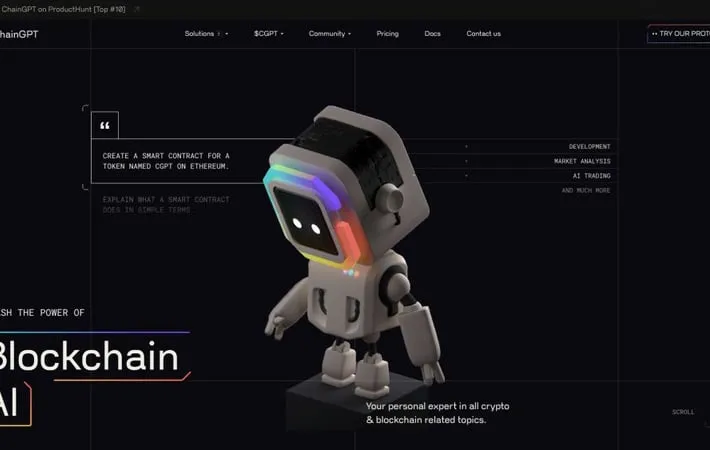
ChainGPT
About ChainGPTChainGPT is a revolutionary AI platform designed to simplify tasks and enhance decision-making in the blockchain and crypto sectors. By harnessing the power of natural language processing and machine learning, ChainGPT offers a comprehensive suite of utilities and tools that seamlessly integrate AI with blockchain and crypto technology. This platform is dedicated to continuous innovation, ensuring users have access to the latest advancements in AI and blockchain.Key FeaturesChainGPT offers a wide range of features that cater to various needs in the blockchain and crypto sectors.AI NFT Generator: Creates custom NFTs based on user prompts, with advanced AI models generating high-fidelity NFTs within seconds.Smart Contract Generator and Auditor: Simplifies smart contract creation and auditing, allowing users to generate contracts without coding knowledge and ensuring robust security.Blockchain Analytics: Provides real-time access to on-chain data, empowering users to make informed decisions.AI-Powered Trading Assistant: Offers advanced trading strategies and technical analysis tools to enhance trading experiences.Use CasesNFT Creation: Artists and creators can use ChainGPT to generate unique NFTs with advanced AI models.Smart Contract Development: Developers can leverage ChainGPT's smart contract generator and auditor to streamline their development process.Blockchain Analysis: Investors and traders can use ChainGPT's blockchain analytics to make informed investment decisions.ProsAdvanced AI capabilitiesComprehensive suite of utilities and toolsReal-time access to on-chain dataStreamlined processesConsSteep learning curve for new usersDependence on AI models for accuracyHow to UseStep 1: Visit the ChainGPT website and sign up for an account.: Create a new account on the ChainGPT platform to access its features and tools.Step 2: Explore the features and tools.: Familiarize yourself with the various features and tools offered by ChainGPT, including the AI NFT Generator, smart contract generator and auditor, and blockchain analytics.Step 3: Choose the desired feature or tool.: Select the feature or tool that best suits your needs, such as generating an NFT or creating a smart contract.Official WebsiteVisit https://www.chaingpt.org/ to learn more.
Whisper AI
About Whisper AI Whisper is an artificial intelligence model developed by OpenAI for automatic speech recognition (ASR). Released in September 2022, Whisper was trained on 680,000 hours of multilingual and multitask supervised data collected from the web. It can transcribe speech in multiple languages, translate speech to English, and identify the language being spoken. OpenAI has open-sourced both the model and inference code to enable further research and development of speech processing applications. Key Features Whisper AI is an advanced automatic speech recognition (ASR) system developed by OpenAI. It is trained on 680,000 hours of multilingual and multitask supervised data, resulting in improved robustness to accents, background noise, and technical language. Whisper can transcribe speech in multiple languages, translate to English, and perform tasks like language identification and phrase-level timestamps. It uses a simple end-to-end Transformer-based encoder-decoder architecture and is open-sourced for further research and application development. Multilingual Capability: Supports transcription and translation across multiple languages, with about one-third of its training data being non-English. Robust Performance: Demonstrates improved robustness to accents, background noise, and technical language compared to specialized models. Multitask Functionality: Capable of performing various tasks including speech recognition, translation, language identification, and timestamp generation. Large-scale Training: Trained on 680,000 hours of diverse audio data, leading to enhanced generalization and performance across different datasets. Open-source Availability: Models and inference code are open-sourced, allowing for further research and development of applications. Use Cases Transcription Services: Accurate transcription of audio content for meetings, interviews, and lectures across multiple languages. Multilingual Content Creation: Assisting in the creation of subtitles and translations for videos and podcasts in various languages. Voice Assistants: Enhancing voice-controlled applications with improved speech recognition and language understanding capabilities. Accessibility Tools: Developing tools to assist individuals with hearing impairments by providing real-time speech-to-text conversion. Language Learning Platforms: Supporting language learning applications with accurate speech recognition and translation features. Pros High accuracy and robustness across diverse audio conditions and languages Versatility in performing multiple speech-related tasks Open-source availability promoting further research and development Zero-shot performance capability on various datasets Cons May not outperform specialized models on specific benchmarks like LibriSpeech Requires significant computational resources due to its large-scale architecture Potential privacy concerns when processing sensitive audio data How to Use Install Whisper: Install Whisper using pip by running: pip install git+https://github.com/openai/whisper.git Install ffmpeg: Install the ffmpeg command-line tool, which is required by Whisper. On most systems, you can install it using your package manager. Import Whisper: In your Python script, import the Whisper library: import whisper Load the Whisper model: Load a Whisper model, e.g.: model = whisper.load_model('base') Transcribe audio: Use the model to transcribe an audio file: result = model.transcribe('audio.mp3') Access the transcription: The transcription is available in the 'text' key of the result: transcription = result['text'] Optional: Specify language: You can optionally specify the audio language, e.g.: result = model.transcribe('audio.mp3', language='Italian') Official Website Visit https://openai.com/index/whisper/ to learn more.
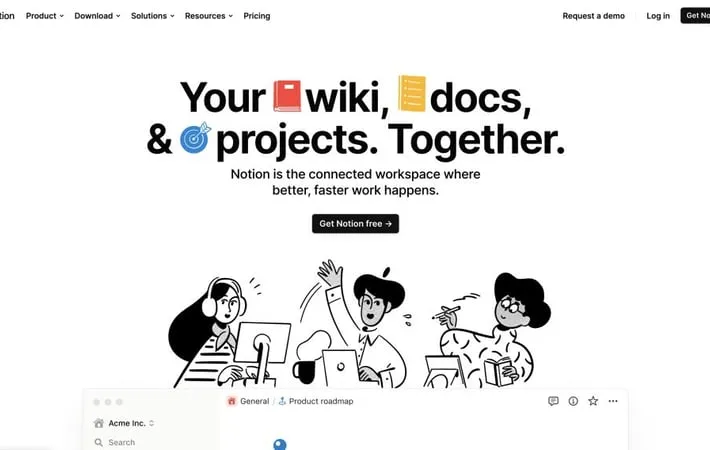
Notion
About Notion Notion is a versatile productivity and collaboration tool that combines multiple functionalities into one connected workspace. Developed by Notion Labs, Inc. and based in San Francisco, Notion offers a web application that serves as a central hub for organizing thoughts, managing projects, and even running entire companies. It provides both free and paid subscription options, catering to individual users as well as large teams. Notion's flexibility allows users to create custom workflows, from simple to-do lists to complex project management systems, all within a clean and intuitive interface. Key Features Notion is an all-in-one workspace that combines note-taking, project management, knowledge bases, and collaboration tools. It offers customizable pages, databases, AI assistance, and integrations to help teams organize information, manage workflows, and boost productivity. Notion's flexible structure allows users to create everything from simple documents to complex project trackers, wikis, and even websites. Customizable Workspace: Build pages and workflows using 100+ content types and flexible building blocks to suit any need. AI-Powered Assistance: Integrated AI helps with writing, editing, brainstorming, and answering questions about workspace content. Collaborative Tools: Real-time collaboration features allow teams to share, comment, and work together seamlessly. Multiple Views: Visualize work in various formats including lists, calendars, kanban boards, and timelines. Integrations: Connect with popular tools and import data from various sources to centralize information. Use Cases Project Management: Track tasks, deadlines, and progress for complex projects across teams and departments. Knowledge Management: Create comprehensive wikis and documentation to store and share company knowledge. Personal Productivity: Organize personal tasks, notes, and goals in a customizable digital workspace. Content Creation: Plan, draft, and collaborate on content with built-in writing tools and AI assistance. Team Collaboration: Facilitate teamwork with shared spaces, real-time editing, and communication features. Pros Highly flexible and customizable to fit various workflows All-in-one solution reducing the need for multiple tools Powerful AI integration for increased productivity Cons Learning curve can be steep for new users due to extensive features Limited offline functionality Some users report performance issues with large databases How to Use Sign up for a Notion account: Go to notion.so and create a free account using your email address or by signing up with Google. Create your first page: Click the '+ New page' button in the sidebar to create a blank page. Give it a title and start adding content. Add content using blocks: Use the '/' command to add different types of blocks like text, headings, lists, images, etc. Blocks are the basic building units in Notion. Organize with databases: Create databases to store and organize information. Use the '+ New database' option to create tables, boards, calendars, and more. Customize views: Switch between different views like table, board, calendar, etc. to visualize your database information in various formats. Use templates: Explore Notion's template gallery to find pre-made templates for various use cases like project management, note-taking, etc. Collaborate with others: Invite team members to your workspace. Use the 'Share' button to give access and collaborate in real-time. Try Notion AI: Experiment with Notion AI for tasks like writing assistance, summarization, and answering questions about your content. Set up integrations: Connect Notion to other tools you use through integrations to streamline your workflow. Customize your workspace: Organize pages into a sidebar structure, set up different workspaces for teams/projects, and personalize your Notion experience. Official Website Visit https://www.notion.so to learn more.
AI Content Creation
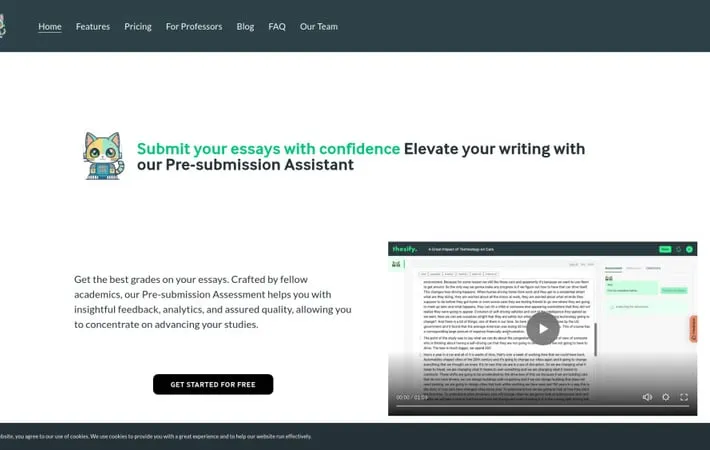
Thesify.ai
About Thesify.aiThesify.ai is an innovative AI-driven platform designed to assist students with their academic writing tasks. It offers a range of features to support the research, writing, and refinement of essays, theses, research papers, and reports. Unlike AI tools that generate content, Thesify.ai focuses on empowering students to enhance their own writing skills and critical thinking abilities. The platform utilizes advanced AI technology to provide personalized feedback, suggest relevant resources, and guide students through the writing process, all while emphasizing academic integrity and original work.Key FeaturesThesify.ai is an AI-powered academic writing tool that assists students in improving their essays, research papers, and other academic writing. It features an AI assistant named Theo that provides real-time feedback, helps with research and citations, offers writing suggestions, and aids in structuring arguments while maintaining academic integrity. The tool aims to enhance students' critical thinking and writing skills rather than generating content for them.AI Writing Assistant (Theo): An AI-powered assistant that provides personalized guidance, feedback, and suggestions throughout the writing process.Semantic Article Search: Helps find relevant academic resources and literature for research papers and essays.Real-time Feedback: Offers instant feedback on writing style, structure, and content to help improve the quality of academic papers.Pre-submission Assessment: Evaluates the overall quality and academic integrity of the work before final submission.Citation Assistance: Aids in proper referencing and citation of sources to maintain academic honesty.Use CasesEssay Writing: Students can use Thesify.ai to improve the structure, argumentation, and overall quality of their essays.Research Paper Assistance: Researchers can utilize the tool to find relevant sources, organize their thoughts, and refine their academic papers.Thesis Development: Graduate students can leverage Thesify.ai to structure their theses, ensure proper citations, and enhance the overall coherence of their work.Academic Writing Skills Improvement: Students at all levels can use the tool to develop better writing habits and improve their academic writing skills over time.ProsEnhances critical thinking and writing skillsMaintains academic integrity by not generating contentOffers a range of features to support various aspects of academic writingProvides real-time feedback and assistanceConsMay require consultation with professors to ensure compliance with specific assignment guidelinesLimited free credits, requiring subscription or pay-as-you-go for extensive useEffectiveness may vary depending on the complexity of the subject matterHow to UseSign up for an account: Create a free account on Thesify.ai to get started with 50 free credits.Upload your draft: Upload the text of your essay, report, or research paper to the Thesify web app.Get instant feedback: Theo, the AI assistant, will provide instant feedback on your writing, highlighting areas for improvement.Revise your work: Use Theo's suggestions to revise and refine your writing, improving structure, arguments, and citations.Use additional features: Utilize other Thesify tools like semantic article search, outline building, and pre-submission assessment as needed.Submit final draft: Once you've incorporated the AI-powered feedback and are satisfied with your work, submit your final draft.Purchase more credits if needed: If you require more extensive use, purchase additional credits through a subscription or Pay-As-You-Go option.Official WebsiteVisit https://thesify.ai/ to learn more.
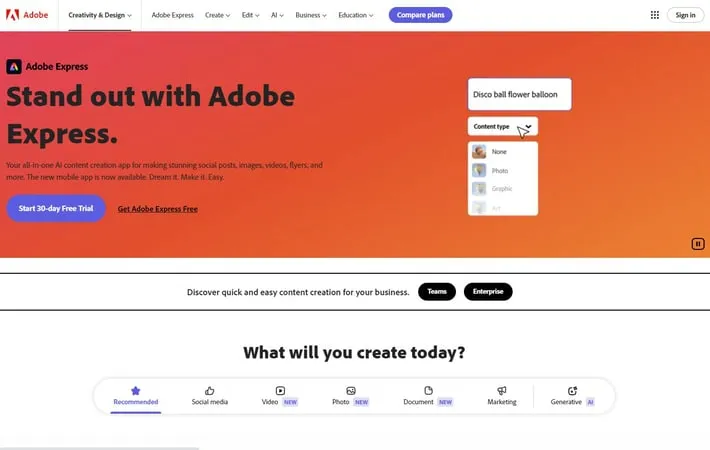
Adobe Express
About Adobe ExpressAdobe Express is a cloud-based design platform developed by Adobe that allows users to quickly and easily create standout content for social media, marketing materials, and other digital assets. It is aimed at mainstream users of all design skill levels, not just professionals. Adobe Express evolved from Adobe Spark and offers intuitive drag-and-drop functionality combined with thousands of customizable templates, stock photos, fonts, and design elements. The app is available on web browsers and mobile devices, with both free and premium paid plans.Key FeaturesAdobe Express is an all-in-one AI-powered content creation app that allows users to easily create stunning social posts, images, videos, flyers, and more. It offers thousands of professionally designed templates, AI-powered tools like text-to-image generation and background removal, content scheduling capabilities, and seamless cross-device workflow. The app includes both free and premium plans with varying levels of features and assets.AI-powered content creation: Use generative AI tools like Text to Image and Text Effects to quickly turn text prompts into extraordinary images and designs.Extensive template library: Access thousands of professionally designed templates for social media posts, stories, flyers, and more to jumpstart creativity.Quick Actions: Easily remove backgrounds, add video captions, generate QR codes, transform images into GIFs, and resize content with one click.Content scheduling: Plan, preview, schedule, and publish content to multiple social media channels directly from the app.Cross-device workflow: Create content seamlessly across desktop browsers and mobile phones with synced files.Use CasesSocial media marketing: Create and schedule eye-catching social media posts and stories for multiple platforms.Event promotion: Design flyers, invitations, and promotional materials for various events and occasions.Educational content: Develop engaging visual materials for classroom use or online learning platforms.Small business branding: Create consistent branded content including logos, marketing materials, and social media assets.Personal projects: Design custom graphics for personal blogs, photo albums, or creative hobbies.ProsUser-friendly interface suitable for beginners and non-designersWide range of templates and assets availablePowerful AI-driven features for quick and easy content creationCross-platform compatibility and syncingConsSome advanced features require a paid subscriptionLimited SVG supportMay not be suitable for complex professional design projectsHow to UseSign up for Adobe Express: Go to express.adobe.com and sign up for a free account or start a free trial of the Premium plan. You can also download the mobile app.Choose a project type: On the Adobe Express homepage, select the type of project you want to create (e.g. social media post, video, flyer, etc.) or start from scratch.Select a template: Browse through the available templates and select one that fits your needs, or start with a blank canvas.Customize your design: Use the drag-and-drop editor to add text, images, icons, and other elements. Customize colors, fonts, and layouts.Add photos or videos: Upload your own media or search Adobe Stock for royalty-free images and videos to use in your project.Apply effects and animations: Enhance your design with effects, filters, and animations available in the editor.Use AI-powered features: Try generative AI tools like Text to Image or Text Effects to quickly create unique content.Resize for different platforms: Use the resize tool to automatically adjust your design for different social media platforms or print sizes.Preview and edit: Preview how your design will look and make any final edits or adjustments.Download or share: When finished, download your project or share it directly to social media platforms.Official WebsiteVisit https://www.adobe.com/express/ to learn more.
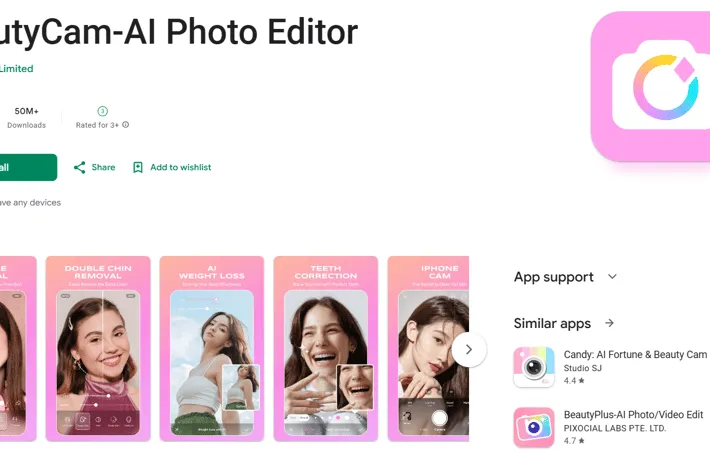
BeautyCam-AI Photo Editor
About BeautyCam-AI Photo EditorBeautyCam-AI Photo Editor is a comprehensive photo editing application developed by Meitu that leverages artificial intelligence to enhance users' photos and videos. The app offers a wide range of features including AI-powered facial enhancement, body reshaping, various portrait styles, and multiple camera models that simulate professional photography equipment. It caters to users looking to improve their selfies, create artistic portraits, or add creative effects to their photos.Key FeaturesBeautyCam-AI Photo Editor is a comprehensive photo editing app that uses AI technology to enhance facial features, body shape, and overall image quality. It offers various portrait styles, multiple camera models, and a wide range of editing tools including filters, makeup effects, and background removal. The app aims to help users achieve professional-looking photos with just a few taps.AI Intelligent Detection: Automatically enhances facial features and body shape using advanced AI algorithmsMultiple Camera Models: Simulates various camera types including vintage film and SLR cameras to capture different atmospheresExtensive Editing Tools: Offers a wide range of editing features like image restoration, object removal, background elimination, and filtersPortrait Beautification: Provides tools for trendy makeup application, wrinkle removal, and 3D nose enhancementAI-Powered Effects: Includes AI slimming, AI portrait styles, and AI expression switching for effortless transformationsUse CasesSocial Media Content Creation: Ideal for influencers and regular users to enhance their photos for social media postsE-commerce Product Photography: Useful for online sellers to improve product images with various filters and effectsPersonal Photo Enhancement: Helps individuals improve their personal photos for dating profiles or professional headshotsEvent Photography: Enables quick touch-ups and enhancements for photos taken at weddings, parties, or other eventsProsWide range of AI-powered editing featuresUser-friendly interface for quick editsVariety of camera models and filtersConsSome features may require in-app purchasesPerformance may vary between Android and iOS devicesWatermarks on some filters can be intrusiveHow to UseDownload and install the app: Search for 'BeautyCam-AI Photo Editor' on the Google Play Store and install it on your Android device.Open the app and grant permissions: Launch BeautyCam and grant necessary permissions like camera and photo access when prompted.Take a photo or select from gallery: Use the in-app camera to take a new photo, or select an existing photo from your device gallery.Apply AI enhancements: Use AI-powered features like AI Slimming, AI Portrait, AI CuteMe, or AI Beauty Mode to automatically enhance your photo.Adjust beauty features: Fine-tune specific beauty features like skin smoothing, eye enlargement, wrinkle removal, etc.Add filters and effects: Browse through various filters and effects to add different styles to your photo.Use editing tools: Utilize tools like the eraser, background removal, or image quality restoration to further edit your photo.Add makeup and retouch: Apply trendy makeup looks or use the smart wrinkle removal and concealer tools for additional retouching.Save or share your edited photo: Once satisfied with your edits, save the photo to your device or share it directly to social media platforms.Official WebsiteVisit https://play.google.com/store/apps/details?id=com.meitu.meiyancamera&hl=en_US to learn more.

Kling AI 1.6 - Global
About Kling AI 1.6 - Global Developed by Kuaishou Technology, Kling AI has rapidly advanced its AI-driven video creation capabilities with the releases of versions 1.5 and 1.6 in late 2024. In version 1.5, launched on September 19, improvements such as the Motion Brush tool, enhanced Camera Movement, and improved multi-tasking capabilities for producing up to four videos simultaneously aimed to boost user creativity and efficiency. This version also introduced faster video generation at 1080p and 30 fps, improved image quality, and the KLING API V1.5, available free of extra charges. November updates added exclusive discounts for the Face Model feature and introduced monthly trial packages. On December 19, Kling 1.6 was launched, offering significant enhancements in realism and semantic understanding. It features lifelike physical interactions, character animations, and the ability to interpret complex prompts for coherent video content. Supporting up to two-minute videos at 30 fps, version 1.6 showed a remarkable 195% improvement in performance metrics, with an affordable pricing model, making it accessible for content creators aiming to produce high-quality videos effortlessly. Key Features Kling AI is an advanced text-to-video generation model developed by Kuaishou Technology that can create high-quality, cinema-grade videos up to 2 minutes long at 30fps and 1080p resolution. It features a 3D Spatiotemporal Joint Attention Mechanism for realistic motion, supports various aspect ratios, and has a deep understanding of text-to-video semantics for creative concept combinations. High-quality video generation: Produces videos up to 2 minutes long at 30fps and 1080p resolution, suitable for professional content creation. 3D Spatiotemporal Joint Attention Mechanism: Enables modeling of complex motions and physical interactions for more realistic and dynamic videos. Flexible aspect ratio support: Allows output of content in various video aspect ratios to meet diverse usage scenarios across platforms. Creative concept combination: Deep understanding of text-to-video semantics enables creation of imaginative scenarios beyond real-world limitations. Public accessibility: Unlike some competitors, Kling AI is available for public testing through Kuaishou's video-editing tool. Use Cases Social media content creation: Quickly generate engaging short-form videos for platforms like TikTok, Instagram, and Kuaishou. Marketing and advertising: Create high-quality video advertisements and promotional content efficiently. Educational content: Produce instructional videos or visual aids for e-learning platforms and online courses. Entertainment and storytelling: Generate creative video content for digital storytelling, web series, or virtual entertainment. Prototyping for film and animation: Quickly visualize concepts and storyboards for film or animation projects. Pros High-quality output suitable for professional use Publicly accessible for testing and use Advanced features like 3D motion modeling and concept combination Supports various aspect ratios for versatile content creation Cons Currently requires Chinese phone number for access Potential impact on human content creators' job market Ethical concerns regarding AI-generated content and misinformation How to Use Go to the official Kling AI website: Visit klingai.co to access the Kling AI platform. Download the Kuaiying app: Scan the QR code provided on the website to download the Kuaiying app, which is required to use Kling AI. Register an account: Sign up for an account using a Chinese phone number. You may need to use an SMS website if you don't have a Chinese number. Join the waitlist: Fill out the waitlist form with your name, email, and reason for wanting to use Kling AI. Wait for confirmation: Check your email for confirmation and further instructions on accessing Kling AI. Access Kling AI in the Kuaiying app: Once approved, open the Kuaiying app to start using Kling AI's text-to-video generation features. Enter your text prompt: Type in a detailed description of the video you want to generate. Adjust video parameters: Select relevant parameters such as video length, resolution, and aspect ratio according to your needs. Generate the video: Click the generate button and wait for Kling AI to create your video based on the provided prompt and parameters. Review and download: Once generation is complete, review your video and download it if satisfied with the result. Official Website Visit https://klingai.com/ to learn more.
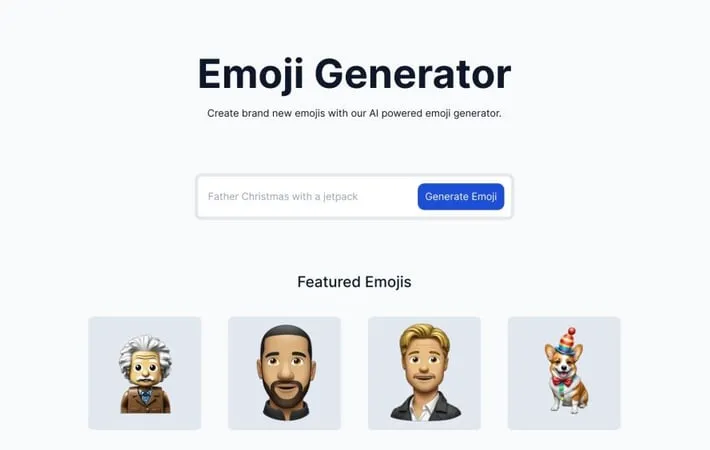
emoji.is
About emoji.is Emoji.is is a web-based tool that leverages artificial intelligence to generate custom emoji designs. Users can input text descriptions or prompts, and the AI will create corresponding emoji images. The platform offers both free and paid options, with a limited number of free emoji generations available daily and a lifetime unlimited access option for purchase. Key Features Emoji.is is an AI-powered emoji generator that allows users to create unique, custom emojis quickly. The platform offers both free and paid options, with users able to generate a limited number of free emojis daily or purchase unlimited lifetime access. It features a wide variety of creative and quirky emoji designs, showcasing the AI's ability to generate diverse and imaginative imagery based on user prompts. AI-Generated Custom Emojis: Create unique emojis using artificial intelligence based on user-provided descriptions or prompts. Free Daily Emoji Generation: Users can create a limited number of free emojis each day without needing to purchase a subscription. Unlimited Lifetime Access Option: For a one-time fee, users can unlock unlimited emoji generation capabilities. Wide Range of Emoji Styles: The AI can produce emojis in various styles, from cartoon-like to more realistic or abstract designs. Use Cases Social Media Content Creation: Influencers and marketers can create unique emojis to enhance their social media posts and engage followers. Brand Identity Development: Companies can generate custom emojis that align with their brand personality for use in marketing materials and communications. Personal Expression in Messaging: Individuals can create personalized emojis to better express themselves in digital conversations and chats. Educational Tools: Teachers can use the platform to create custom emojis for educational materials, making learning more engaging for students. Pros Offers unique, AI-generated emojis not available elsewhere Provides both free and paid options to suit different user needs Allows for creative expression and customization in digital communication Cons Limited free daily generation may be restrictive for some users Quality and relevance of AI-generated emojis may vary One-time fee for unlimited access might be steep for casual users How to Use Visit the emoji.is website: Go to https://www.emoji.is/ in your web browser View existing emojis: Browse the 'Featured Emojis' and 'Latest Emojis' sections to see examples of custom emojis created by others Create a new emoji: Click on the area to create a new emoji (not explicitly shown, but likely available on the site) Enter a description: Type in a description of the emoji you want to create using AI generation Generate the emoji: Click a button to have the AI generate your custom emoji based on your description View your created emoji: See the AI-generated emoji based on your input Save or share your emoji: Options to save your created emoji or share it on the platform (exact steps not provided, but likely available) Manage free emoji limit: Note that you have 1 free emoji per day, or upgrade to unlimited emojis for $29 lifetime access Official Website Visit https://www.emoji.is/ to learn more.
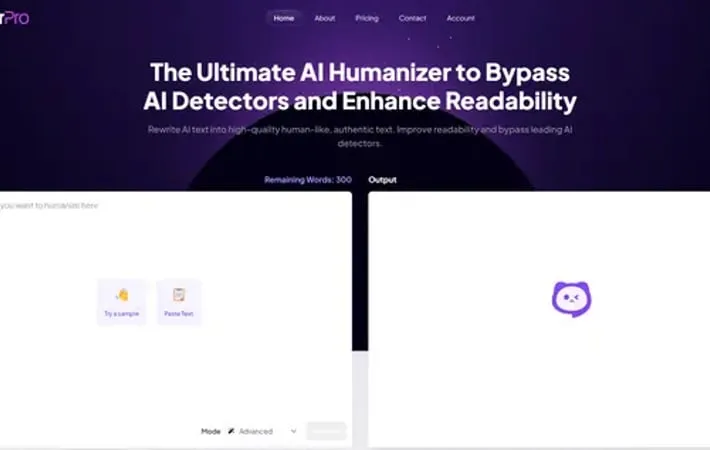
HumanizerPro AI
About HumanizerPro AI HumanizerPro AI is a cutting-edge AI humanizer tool designed to convert robotic AI-generated text into engaging, human-like content. It uses sophisticated algorithms and AI models to rewrite text in a way that mimics natural human writing patterns. This tool is particularly useful for content creators, marketers, students, and professionals who want to leverage AI-generated content while ensuring it remains undetectable by AI detection systems and maintains a natural, conversational tone. Key Features HumanizerPro AI is an advanced tool that transforms AI-generated text into natural, human-like content. It uses sophisticated algorithms to bypass leading AI detectors like GPTZero and Turnitin while improving readability and maintaining the original meaning. The tool supports multiple languages, offers various humanization modes, and ensures plagiarism-free content, making it versatile for content creators, students, and professionals across industries. AI Detector Bypass: Uses advanced algorithms to rewrite content that can bypass top AI detection tools like GPTZero, Originality.ai, and Turnitin. Multiple Humanization Modes: Offers various modes like Standard, Shorten, Expand, Simplify, and Improve Writing to tailor the humanization process to specific needs. Multilingual Support: Capable of humanizing content in multiple languages, making it accessible to a global audience. Plagiarism-Free Content: Ensures 100% original and unique content that can pass any plagiarism detector tool. User-Friendly Interface: Features an intuitive design that simplifies the humanization process for both novice and experienced users. Use Cases Content Marketing: Helps content creators and bloggers transform AI-generated articles and blog posts into engaging, natural-sounding content. Academic Writing: Assists students and academics in enhancing the readability of AI-generated research summaries and papers. SEO Optimization: Enables SEO specialists to create compelling, human-like content for better search engine rankings and user engagement. Business Communications: Allows businesses to streamline content creation for websites, newsletters, and internal communications with a human touch. Multilingual Content Creation: Supports non-native speakers and global businesses in creating human-like content across various languages. Pros Effectively bypasses leading AI detection tools Improves content readability while maintaining original meaning Supports multiple languages and offers various humanization modes User-friendly interface suitable for both beginners and professionals Cons May still have a slight chance of being flagged by some AI detectors Ethical concerns regarding its use in academic settings Potential overreliance on AI for content creation How to Use Visit the HumanizerPro website: Go to https://humanizerpro.ai/ in your web browser Input your AI-generated text: Paste or upload your AI-generated text into the input box on the HumanizerPro tool Select humanization mode: Choose your preferred humanization mode (e.g. Basic, Standard, etc.) from the available options Click 'Humanize': Press the 'Humanize' button to start the transformation process Review the humanized content: Read through the newly humanized text to ensure it meets your requirements Make adjustments if needed: If you're not satisfied, you can click 'Retry' or use alternative bypass modes for another rewrite Download the humanized text: Once satisfied with the result, download the humanized content for immediate use Official Website Visit https://humanizerpro.ai/ to learn more.
Novmuser AI
About Novmuser AI Novmuser AI is an innovative AI-powered writing assistant designed specifically for novelists and storytellers. Developed by a dedicated team, this tool aims to revolutionize the novel writing process by leveraging artificial intelligence. Novmuser AI is positioned as a comprehensive solution that enhances the writing experience, offering features to boost creativity, streamline the writing process, and automate editing tasks. While still in development with a 'Coming Soon' status, Novmuser AI promises to be a game-changer in the world of digital writing tools for authors. Key Features Novmuser AI is an upcoming AI-powered tool designed to assist aspiring novelists in crafting their stories efficiently. It aims to provide a simulated novel writing team experience, enhancing creativity and automating editing processes to streamline the writing workflow. AI-Powered Writing Assistance: Utilizes artificial intelligence to help writers develop and refine their stories. Simulated Writing Team: Provides the experience of having a collaborative writing team through AI-driven suggestions and feedback. Automated Editing: Offers automated editing capabilities to improve the quality and consistency of written content. Efficiency Enhancement: Streamlines the writing process to help authors complete their novels more quickly. Use Cases Novel Writing: Assists aspiring authors in writing and completing full-length novels more efficiently. Creative Writing Courses: Supports students and educators in creative writing programs by providing AI-powered writing assistance. Self-Publishing: Helps self-published authors improve their writing quality and productivity. Pros Enhances writing efficiency and productivity Provides AI-powered assistance for improved creativity Offers automated editing to enhance writing quality Cons May reduce the organic nature of the writing process Potential over-reliance on AI suggestions could impact unique writing styles How to Use Wait for launch: Novmuser AI is not yet available. The website states 'We are Coming Soon', so users will need to wait until the service officially launches before they can use it. Check for updates: Monitor the Novmuser AI website or sign up for notifications to be informed when the service becomes available for use. Explore features: Once launched, explore Novmuser AI's features for enhancing writing efficiency, creativity, and automating editing processes for novel writing. Official Website Visit https://novmuserai.com/ to learn more.

anyword
About anyword Anyword is an innovative AI writing platform designed specifically for enterprise marketing teams to scale their content creation while maintaining brand consistency and driving measurable results. Founded in 2021, the platform leverages advanced natural language processing and machine learning algorithms to generate and optimize marketing copy across websites, social media, emails, ads, and other digital channels. What sets Anyword apart is its unique ability to predict content performance before publication, backed by years of analyzing millions of marketing assets from leading brands. Key Features Anyword is an AI-powered content generation platform that helps enterprise marketing teams create high-performing, on-brand content at scale. It combines predictive performance scoring, brand voice customization, and data-driven analytics to optimize content across multiple marketing channels. The platform leverages billions of marketing data points to predict content performance before publishing and ensures consistency through custom AI models trained on a company's existing successful content. Content Intelligence: Analyzes published content against industry-specific AB-test datasets to identify performance improvement opportunities and optimize future AI-generated content Data-driven Editor: Provides predictive performance scoring for content variations before publishing, helping marketers select the most effective copy based on real marketing data Brand Voice Customization: Creates custom AI models trained on company's successful content to maintain consistent brand messaging, tone, and style across all channels Multi-platform Integration: Seamlessly integrates with popular tools like ChatGPT, Notion, Gemini, and marketing platforms including Facebook, LinkedIn, and HubSpot Use Cases Product Marketing Optimization: Helps product marketers create consistent messaging across channels, generate launch content efficiently, and identify best-performing content angles Social Media Management: Enables creation of engaging social posts with 20% higher engagement rates through predictive scoring and audience-specific content optimization Email Marketing Campaigns: Generates high-performing email content with optimized subject lines and copy, improving open rates and click-through rates without extensive A/B testing Content Marketing at Scale: Produces SEO-optimized blog posts, website content, and marketing materials while maintaining brand consistency and performance standards Pros Powerful predictive analytics and performance scoring Extensive integration capabilities with popular marketing tools Strong brand voice customization and consistency features Cons Complex interface with steep learning curve for new users Requires constant internet connectivity Higher pricing compared to basic AI writing tools How to Use Sign up for Anyword: Visit anyword.com and click 'Start for free' or 'Request demo'. You can sign up using your Google account or work email. A free trial is available to test the platform. Choose your content type: Select the type of content you want to create from Anyword's Data-Driven Use Cases - options include ads, social posts, emails, landing pages, blogs, SMS messages and more. Set up your brand voice: Input your brand's messaging guidelines, tone of voice, and target audience profiles to ensure consistent content across all channels. This helps Anyword generate on-brand content. Generate content: Enter your content requirements and let Anyword's AI generate multiple variations. The platform uses natural language processing to create marketing copy tailored to your needs. Review performance predictions: Each piece of generated content comes with a Predictive Performance Score indicating its potential conversion rate. Higher scores suggest better performance potential. Optimize and refine: Use Anyword's content improver template to enhance existing content. The platform provides suggestions to improve engagement and conversion rates based on data analysis. Collaborate with team: Add team members through Account Settings to collaborate on content. Multiple users can access the same workspace and brand voice settings. Export and implement: Export your finalized content by clicking 'Export to CSV'. You can then implement the optimized copy across your marketing channels. Track and analyze: Use Anyword's analytics to monitor content performance across channels and continue optimizing based on real data and insights. Official Website Visit https://www.anyword.com/ to learn more.
Jasper - AI Writer | AI Marketing Co-Pilot
About Jasper - AI Writer | AI Marketing Co-Pilot Jasper is an enterprise-grade AI platform designed to revolutionize marketing and content creation. It serves as an AI copilot for marketing teams, offering features like brand voice customization, content generation across multiple formats, image creation, and analytics. Jasper integrates with existing workflows through browser extensions, APIs, and various integrations, making it adaptable to different business needs. With a focus on security, privacy, and ethical AI use, Jasper aims to enhance marketing efficiency while maintaining brand consistency and quality. Key Features Jasper is an AI-powered marketing platform that helps businesses create high-quality content faster and more efficiently. It offers features like brand voice customization, campaign creation, AI-assisted content generation, analytics and insights, and integrations with various tools. Jasper aims to enhance marketing teams' productivity, maintain brand consistency, and drive better marketing outcomes through AI technology. Brand Voice: Customize AI to match your brand's unique voice and style, ensuring consistency across all content. AI-Assisted Content Creation: Generate various types of content including blog posts, social media posts, and marketing copy with AI assistance. Campaign Acceleration: Create full marketing campaigns from a single brief, streamlining the campaign creation process. Analytics and Insights: Optimize content performance with AI-powered analytics and recommendations. Jasper Everywhere: Access Jasper's AI capabilities through browser extensions, integrations, and API, allowing use in various platforms and workflows. Use Cases Content Marketing: Generate blog posts, articles, and other long-form content to boost SEO and engage audiences. Social Media Management: Create engaging social media posts and captions across multiple platforms. Email Marketing: Craft compelling email subject lines and body content to improve open rates and conversions. Ad Copywriting: Develop persuasive ad copy for various digital marketing campaigns. Product Descriptions: Generate unique and appealing product descriptions for e-commerce websites. Pros Increases content production efficiency Maintains brand consistency across various content types Offers versatile integrations and API access Provides analytics for content optimization Cons May require fine-tuning to accurately capture brand voice Potential learning curve for team members new to AI tools Pricing may be higher compared to some competitors How to Use Sign up for a Jasper account: Go to Jasper.ai and click 'Start Free Trial' to create an account. Choose between the Creator, Pro, or Business plan based on your needs. Set up your brand voice: Use Jasper's Brand Voice feature to define your company's tone, style, and key information. This helps Jasper generate on-brand content. Choose a content type: Select the type of content you want to create from Jasper's 50+ templates, such as blog posts, social media captions, or marketing copy. Input your content brief: Provide Jasper with key details about your desired content, including topic, target audience, and any specific instructions. Generate content: Click the generate button to have Jasper create content based on your inputs. You can regenerate or tweak the outputs as needed. Edit and refine: Review the AI-generated content, make any necessary edits, and use Jasper's built-in tools to optimize for SEO or tone. Collaborate with team: Share your content with team members directly in Jasper for feedback and approval using the collaboration features. Publish or export: Once finalized, publish your content directly to integrated platforms or export it for use elsewhere. Analyze performance: Use Jasper's analytics features to track content performance and get AI-powered recommendations for optimization. Official Website Visit https://jasper.ai/ to learn more.